Move your game progress to a new phone
This guide is for our Android games on Google Play. It explains how progress is backed up, how to make a new phone (or a reinstall) pick that backup up, and how to check the one setting that goes wrong most often.
Just updated and staying on this phone?
Nothing to do. If Google Play Games is signed in on your phone, the game signs in by itself and starts backing up the first time you open it after the update. The small pop-up with your gamer name when the game starts is the confirmation. No pop-up? See No pop-up with a gamer name under If it did not work. Moving to a new phone, or reinstalling? Follow the two steps below; a reinstall on the same phone is Step 2 only.
Which games back up progress
- Spots Connect — version 2.11 and later
Other Launchship Studios games keep progress on the phone only. For those, a reinstall or a new phone starts from level 1, and there is nothing to restore. We add games to this list as backup ships in them.
How it works
A game with backup saves your progress to Google Play Games, under the Google account that Play Games uses for that game. It saves when you open the game, after you finish a level, and when you leave the game, as long as the phone is online. Any phone where the same game uses the same Google account reads that backup when the game opens.
The catch: Play Games can use a different Google account for each game, and that choice is separate from the Play Store account and from the profile shown in the Play Games app. Two phones can look identical and still use different accounts for the game. The steps below check it directly.
What is saved differs a little per game. For Spots Connect: level, stars and scores, gems, tickets, boosters, the remove-ads purchase and your theme. Not saved: the lives timer and the sound and music settings.
Before you start
The screens below are from an Android 13 phone with the current Google Play Games app. Names and positions vary a little between phones and app versions. Account names in the pictures are hidden.
- Both phones can go online (Wi-Fi or mobile data).
- The Google Play Games app is installed on both phones. It is preinstalled on most phones; if it is missing, install it from Google Play.
- You know which Google account you want the game to use. Pick one and use it on both phones.
- On the old phone, the game is updated to a version with backup (see the list above). To check: open Google Play, search the game, tap it, scroll to About this game, and read the version at the bottom.
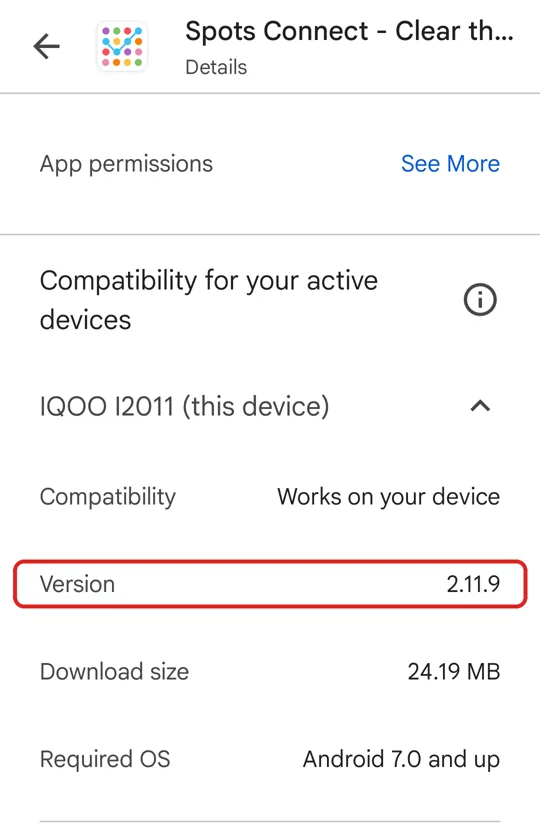
Google Play → the game → About this game. The Version row is near the bottom.
Step 1 — On the old phone
- Connect to the internet.
- Open Google Play Games. Tap the ⋮ (three dots, top right) → Settings.
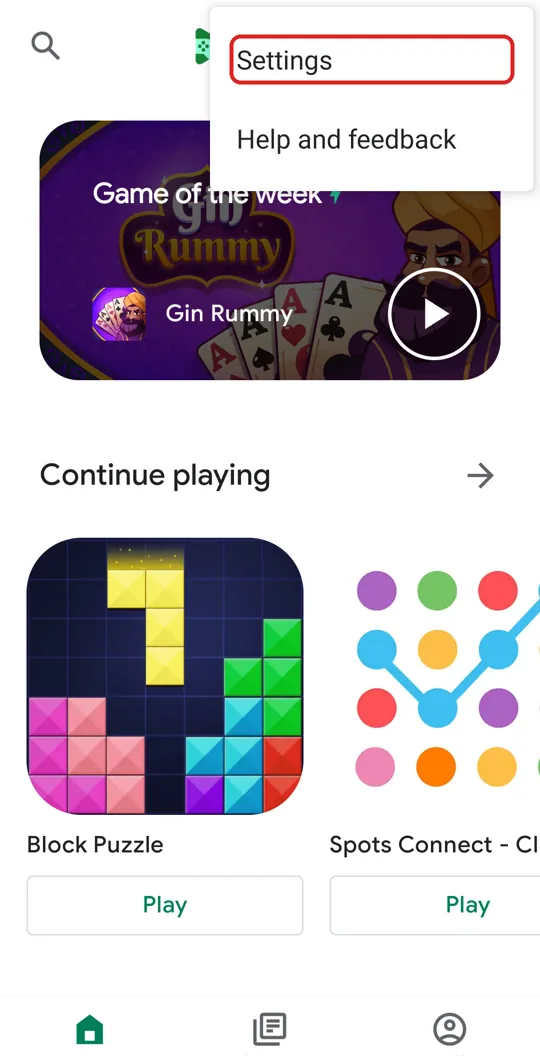
The ⋮ menu in Google Play Games. Tap Settings. - Scroll to Your data → tap Change account for games.
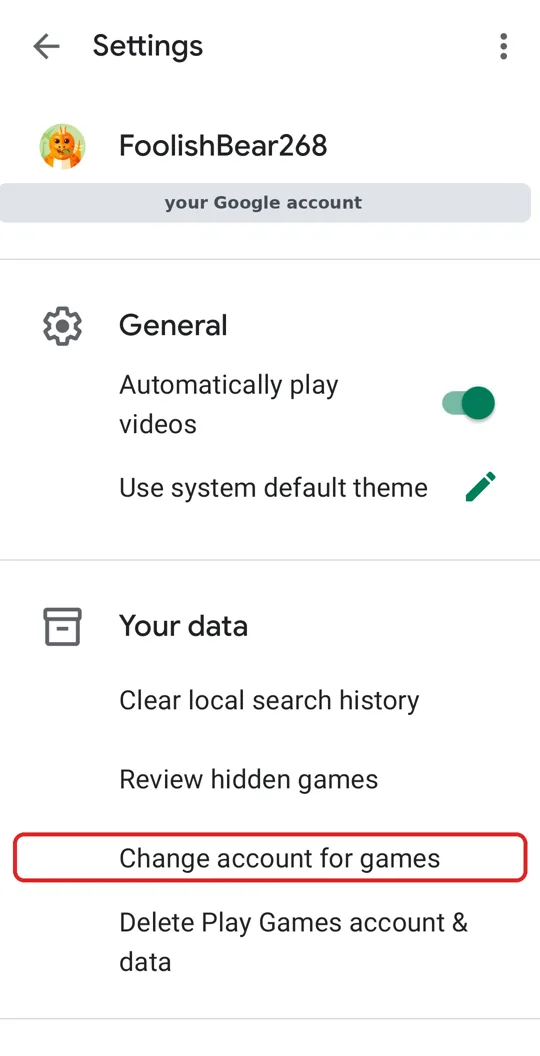
Settings → Your data → Change account for games. Your gamer name and Google account appear at the top. - At the top, note the default account for games. Below it, find your game in the list and note the account shown next to it. This is the account that holds your backup. Write it down.
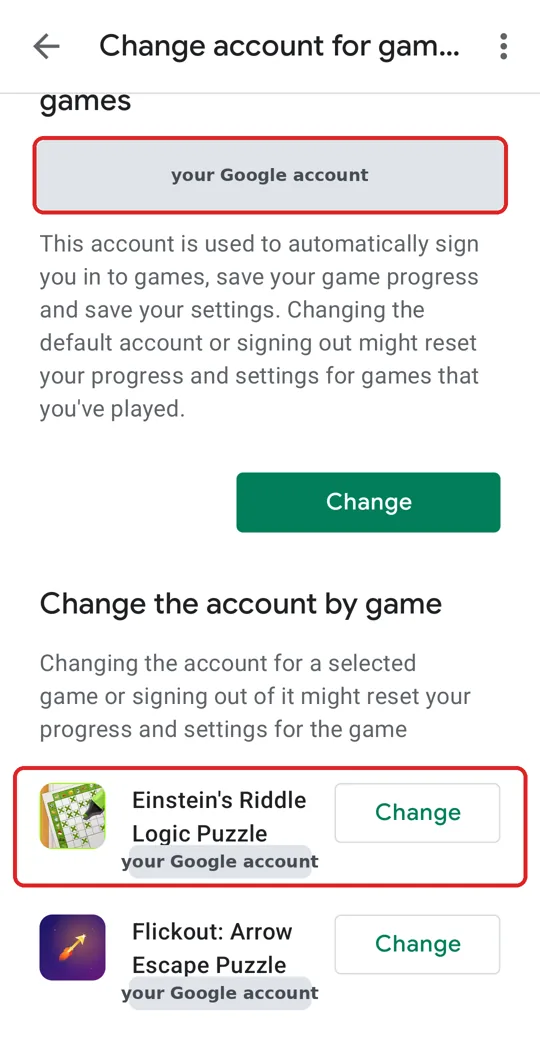
The default account is at the top. Each game row shows the account that game actually uses, with its own Change button. - If the game is not in the list, it has never signed in to Play Games on this phone. Set the default account at the top to the account you want, then go to the next step; the game will sign in with it.
- Open the game. In the first seconds Play Games shows a small pop-up at the top of the screen with your gamer name. That pop-up means the game is signed in and the backup is being read and written. If no pop-up appears and the game never shows one, see If it did not work below.
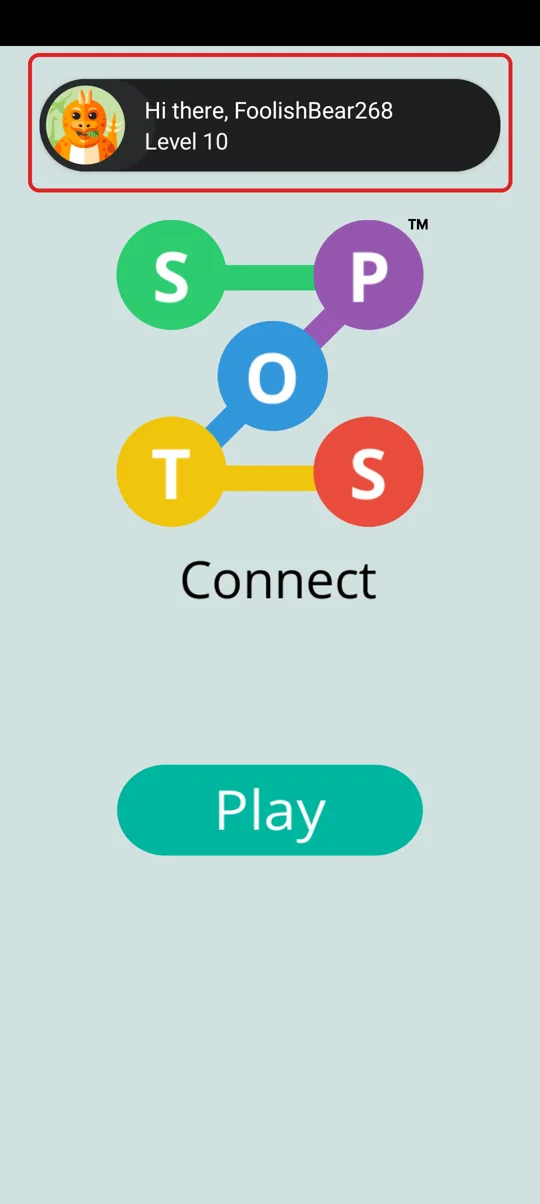
The pop-up appears for a few seconds at the top of the title screen. It means the game is signed in. - Play one level, or just wait half a minute on the map, then press Home. Leaving the game triggers a save. Your latest progress is now backed up.
Step 2 — On the new phone (or after a reinstall)
Reinstalling on the same phone? Skip item 1; the rest is the same.
- Add the account you wrote down to the phone, if it is not there yet: Android Settings → Google (or Passwords & accounts) → Add account → Google.
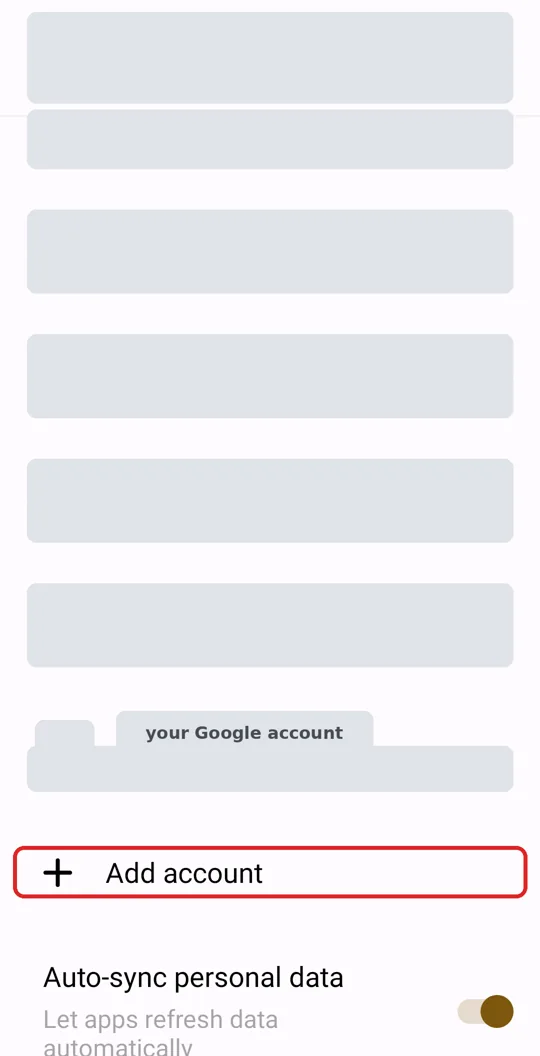
Android Settings → Passwords & accounts. Other accounts are hidden here; on your phone they are listed above Add account. - Connect to the internet.
- Open Google Play Games → ⋮ → Settings → Your data → Change account for games.
- Set the default account for games at the top to the account you wrote down. If the game is already listed with another account, tap Change next to it and pick the right one.
- Install the game from Google Play (the current version always has backup if the game is in the list above).
- Open the game. Watch for the Play Games pop-up with your gamer name. Within a few seconds the map should show the level from the old phone.
- Check the numbers: level, and the gems or coins count. If they match the old phone, you are done. If the game opened on level 1, force-close it (recent apps → swipe it away) and open it again once; the first open sometimes finishes signing in after the map has already drawn.
How to tell which account a game uses
Only the Change account for games screen in Play Games Settings shows it. These do not:
- The account picker at the top of the Play Games Profile tab. It changes which profile you are looking at, not which account games use.
- The account shown in the Play Store. Installing the game from one account does not make the game use that account.
- The account the phone was set up with. Phones with several Google accounts can bind each game to any of them.
The gamer name in the pop-up when the game opens is the quickest check: it should be the same on both phones.
If it did not work
The game uses a different Google account on one phone
This is the cause almost every time. On the phone that is wrong, open Play Games → ⋮ → Settings → Your data → Change account for games, tap Change next to the game and pick the account from the other phone. Then force-close the game and open it again while online.
No pop-up with a gamer name when the game opens
The game is not signed in to Play Games. Make sure the Play Games app is installed and updated, the phone is online, and the account is added to the phone. Open the Play Games app once and sign in there, then open the game again.
The phone was offline when the game opened
The backup is read when the game starts. Connect to the internet, force-close the game and open it again.
The old phone never had the backup version
Backup starts with the version listed at the top of this page. If the old phone was never updated to it, or was never online with it, there is no backup to restore. Update the old phone first if you still have it, open the game online once, then do Step 2.
Changed the account but the game still shows the wrong progress
On the new phone only: Android Settings → Apps → the game → Storage → Clear data, then open the game while online. This is safe on the new phone because it reloads from the backup. Never clear data on the old phone until the new one shows your progress.
Questions
Do I need Facebook?
No. Our games no longer use Facebook login. Backup goes through Google Play Games only.
Does it cost anything?
No. Google Play Games and the backup are free.
I already played on the new phone. Will I lose that?
No. When both phones have progress, each item keeps the higher value: your best level, stars and gems from both.
Can two people play on one phone without mixing progress?
Yes, with two Google accounts on the phone. Progress follows the account that Play Games uses for the game, so switching it on the Change account for games screen switches between the two people's progress. Force-close the game after switching.
My old phone is lost or broken. Can I still restore?
Yes, if the old phone had the backup version and went online after your last progress. The backup lives in your Google account, not on the phone. Follow Step 2 on the new phone. If the old phone never ran the backup version, there is no backup.
Does my remove-ads purchase come back?
In Spots Connect, yes, it is part of the backup. It is also tied to the Google Play account that bought it.
Why are my lives or timers different?
Timers are not backed up; they restart on the new phone. Lives refill on their own.
Does it work on iPhone or on phones without Google Play?
No. Backup needs Google Play Games, so it works only on Android phones with Google Play.
Can I switch the account a game uses later?
Yes, at any time, on the Change account for games screen. The game then shows that account's progress. Your other account's progress is not deleted; switching back brings it back.
Need help?
Email contact@launchshipstudios.com with the game's name, your Play Games gamer name (the name in the pop-up, not your email), the level you were on, and the phone model. We can check the backup from our side.
Back to the FAQ.